If you’re trying to detect bot traffic in Google Analytics, GA4 can quietly distort what looks “true” when you see sudden traffic spikes, strange referral domains, or patterns that don’t match any campaign, PR, or ranking changes. That noise can push you toward the wrong SEO decisions on landing pages, channels, and conversions.
GA4 does exclude known bots automatically, but it has limits. Google notes that you can’t disable known bot exclusion or see how much was excluded (Google Analytics Help). And with bots accounting for 49.6% of all internet traffic in 2023 (Thales/Imperva), treating data quality as a one-time cleanup usually backfires.
This guide gives you a repeatable workflow to detect bot traffic in Google Analytics: spot anomalies, validate suspicious patterns, clean reporting using GA4-native controls (internal/dev filters and unwanted referrals), and escalate to upstream prevention (WAF/CDN and server-side tagging) when GA4 isn’t enough. We’ll also keep your reporting grounded in decision-grade KPIs (see these SEO metrics that matter) and clarify where GA4 ends and complementary measurement begins.
TL;DR
- GA4 automatically excludes known bots, but unknown bot traffic can still pollute your reports.
- Start by spotting anomalies: sudden spikes, strange referrers, odd geo/device clustering, and low engagement.
- Validate before you act: confirm patterns across source/medium, landing pages, events, and conversions.
- Use GA4-native controls carefully: internal/developer traffic filters (Testing first) and unwanted referrals for attribution cleanup.
- If spam keeps returning, move upstream with WAF/CDN rules, bot management, server-side tagging, and Measurement Protocol validation.
- Keep measurement honest: GA4 explains post-click behavior; Wellows can complement it by tracking pre-click visibility and citations in AI-driven results.
Understanding Bot Traffic and Why GA4 Data Gets Polluted
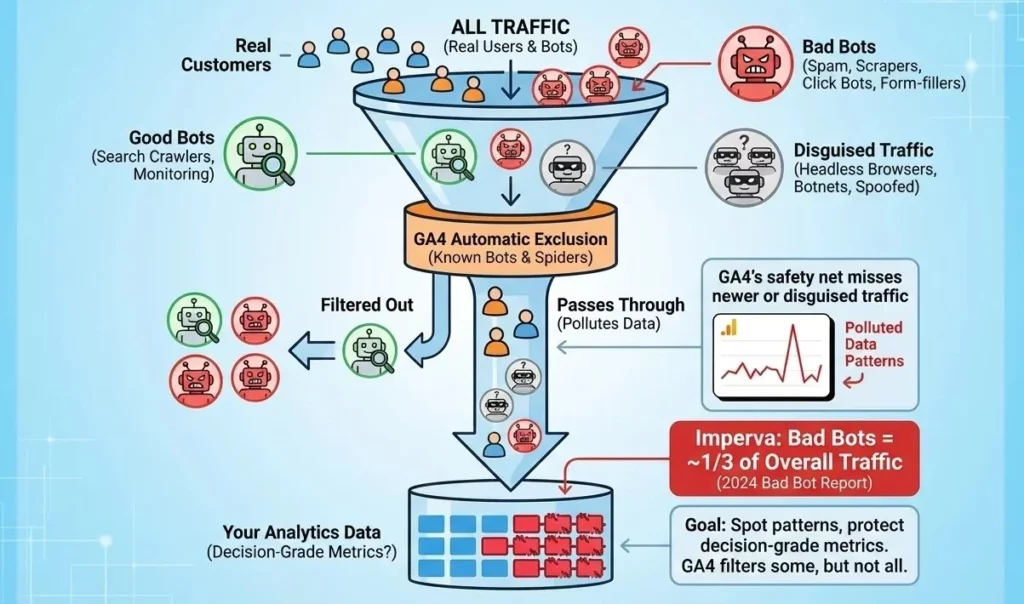
When people talk about bot traffic in GA4, they usually mean “anything that isn’t a real customer,” but that bucket includes very different bot types in analytics. Some automation is helpful (search engines crawling your pages). Other automation exists to scrape, spam, or game ads, and it can show up in your acquisition reports like normal users if it’s sophisticated enough.
GA4 does have a safety net: traffic from known bots and spiders is automatically excluded. But “known” is the key word. GA4’s known-bot exclusion helps with the obvious stuff, not the newer or disguised traffic, think headless browsers, botnets, or traffic that’s spoofed to look like a real device. That’s why you can still see bot traffic GA4 patterns in your data, even when everything is set up correctly.
And it’s not a small problem: Imperva’s latest reporting consistently shows bad bots make up roughly a third of overall traffic in recent years (Imperva 2024 Bad Bot Report).
Common Bot Traffic Categories in GA4
- Good bots (generally fine): Search crawlers and monitoring bots that check uptime or index content.
- Bad bots (data-polluting): Spam bots (junk referrals), scrapers (content/IP theft), click bots (ad fraud), and form-filling bots (fake leads).
The takeaway: GA4 can filter some automation, but it can’t prevent all of it. That’s why the goal is to spot patterns and protect decision-grade metrics, especially when your visibility and outcomes don’t live in one channel anymore (see these GEO KPIs for a broader measurement mindset).
How Bot Traffic Skews SEO and Marketing Metrics
The most frustrating part of bot traffic isn’t the traffic itself, it’s what it does to your decisions. You open GA4, and it looks like a landing page “stopped working,” organic suddenly fell off a cliff, or conversions magically doubled overnight.
Moments like these are part of why content optimization feels way harder than SEO where the data is no longer the bottleneck, but the judgment layer on top of it almost always is, and seeing where that breaks down changes how you diagnose the next drop.
This is why practitioners keep coming back to the same advice: you have to watch for anomalies and patterns before you trust the story your dashboards are telling you. MeasureU puts it plainly: you need to monitor report anomalies to identify bot traffic (MeasureU). And given bots made up 49.6% of overall internet traffic in 2023, this isn’t a rare edge case, it’s a recurring data quality problem (Thales/Imperva).
- Engagement rate: drops when bots bounce instantly, making good pages look “low quality.”
- Sessions: inflate during bot floods, hiding real trend shifts in your true audience.
- Users: get overstated by junk sessions, leading to false “growth” narratives.
- Conversions: show conversion inflation from fake form submits or event spam, misleading ROI.
- Conversion rate: swings wildly, pushing teams to “optimize” the wrong funnel step.
- Source/Medium: gets polluted, creating attribution issues and miscrediting channels.
- Direct/(none): surges can mask the real origin of traffic and break reporting confidence.
- Landing pages: look worse (or oddly better), which can derail SEO priorities and content roadmaps.
- Geo/device mix: shifts toward unusual locations/devices, sending targeting and UX work in the wrong direction.
- Cost per lead / ROI: becomes unreliable when leads are fake, triggering bad budget moves.
Common Indicators of Bot Traffic in GA4
Detecting bot traffic in Google Analytics starts with a fast scan for patterns that don’t behave like humans. GA4 already excludes known bots (Google Analytics Help), so what you’re looking for here is the unknown stuff, automation that slips through and shows up as analytics anomalies. With bots making up 49.6% of all internet traffic in 2023, it’s worth building a quick weekly habit around these checks.
| Indicator | Where to check in GA4 | Why it’s suspicious | Next check |
|---|---|---|---|
| Sudden traffic spike with no campaign change | Reports → Acquisition → Traffic acquisition (compare dates) | Bot floods appear as sharp step-changes | Break down by Source/Medium + Landing page |
| Very low engagement across a large slice of sessions | Engagement → Pages and screens | Bots often trigger sessions but don’t interact | Check engagement rate by channel and landing page |
| Weird referrers or “junk” domains | Traffic acquisition → Session source/medium | Common sign of GA4 spam traffic and referral noise | Inspect the referrer list; consider “Unwanted referrals” later |
| Clusters from data-center metros (e.g., Ashburn/Boardman) | Demographics → City / Region | Automation frequently routes through data centers | Cross-check device + engagement; confirm it’s not VPN/corp traffic |
| Language spam or odd locale values | Demographics → Language | Spam often leaves noisy language signals | Check if the same sources/landing pages repeat |
| “(not set)” patterns or missing key dimensions | Explore → Free form (add dimensions) | Bad instrumentation or spoofed hits can cause gaps | Compare by source; verify tagging and event setup |
| Direct/(none) surges that don’t make sense | Traffic acquisition → Session default channel group | Can be masking origins or indicating spoofed traffic | Check landing pages + geography for clustering |
| Conversions spiking with low-quality behavior | Engagement → Conversions | Fake lead submissions and event spam inflate KPIs | Review event counts per session; validate lead quality outside GA4 |
Use this table like a checklist: if you see two or three signals lining up (especially the same sources + the same landing pages), don’t guess, investigate. If you’re already watching traffic shifts in real time, the habit is easier to keep, and Wellows approach to real-time SEO data monitoring is a good model for catching “something changed” before it ruins a month of reporting.
Step-by-Step: How to Identify Suspicious Bot Activity in GA4
To detect bot traffic in Google Analytics without BigQuery, you need a repeatable workflow. GA4 already excludes known bots, so this process is about finding the unknown stuff by tracing patterns in your reports. If you do it the same way every time, you’ll catch issues faster and avoid “random fixes” that don’t hold up long term.
- Confirm the spike: Go to Reports → Acquisition → Traffic acquisition and compare the last 7/28 days to the previous period.
- Lock the time window: Narrow the date range to the exact day(s) the spike started, then note the start time if it’s obvious.
- What you should see (Checkpoint #1): a clear step-change (not a slow trend) and one or two channels driving most of the lift.
- Break down by channel: In Traffic acquisition, use Session default channel group and see what jumped (Organic, Referral, Direct, etc.).
- Drill into Source/Medium: Switch the primary dimension to Session source/medium to surface suspicious referrers or odd “Direct/(none)” surges.
- What you should see (Checkpoint #2): a small set of sources/mediums that explain most of the spike, or a messy spread that suggests spoofed “Direct” traffic.
- Check landing pages: Go to Engagement → Landing page (or Landing page report if enabled) and see which pages received the suspicious traffic.
- Validate engagement: Compare engagement rate, average engagement time, and views per session for the suspicious sources vs everything else.
- What you should see (Checkpoint #3): bot-like sessions often cluster on a few pages, show very low engagement, and look “too consistent” across sessions.
- Inspect events and conversions: Go to Engagement → Events and Engagement → Conversions. If conversions spiked, check whether they’re tied to one event (common with event spam or fake form submits).
- Sanity-check device + geo: Open Tech → Browser/Device category and Demographics → City/Region. Look for strange concentrations, unusual screen resolutions, or repeated single-page sessions from one area.
- What you should see (Checkpoint #4): suspicious traffic tends to “stack” , the same source/medium + same landing page + odd geo/device patterns.
- Build a working segment in Explorations: Go to Explore → Free form, add dimensions like Session source/medium, Landing page, City, Device category, and create a segment for the suspicious slice.
- Document the fingerprint: Write down the repeatable identifiers (top sources, top landing pages, common cities, and any consistent event patterns). This is what you’ll use later for reporting cleanup or upstream prevention, and it’s also the quickest way to confirm the issue next time (you’ll see the same “shape” again).
If you want to compare notes with what other teams do, the real-world playbooks in the community threads are worth skimming (Reddit discussion). And one practical reminder: GA4 tells you what happens after the click, especially inside AI summaries—How to optimize for google ai overviews becomes part of the diagnostic path, not just an SEO tactic.
For visibility shifts that happen before the click, especially in AI-driven results, teams often pair GA4 with measurement that tracks presence and citations, like Google AI visibility tracking.
Avoiding False Positives Before You Filter Anything
It’s tempting to jump straight to blocking, but most bot-cleanup disasters come from false positives. A spike from a “weird” city might be your remote team on VPN. A surge in Direct traffic could be a legit email blast. And a burst of low-engagement sessions might be uptime monitoring or a third-party tool hitting key pages.
If you filter too aggressively, you don’t just lose bad data, you lose the ability to trust future trendlines—especially when teams treat QA as a process and follow a technical SEO checklist for agencies before pushing changes live.
GA4 makes this extra important because filters aren’t a “try it and see” switch. Google’s warning is blunt: “Once you apply a data filter, the effect on the data is permanent.” (Internal traffic filter help) Also, don’t expect instant feedback: developer traffic filters can take 24–36 hours to apply (Developer traffic filter help), so rushing changes can create more confusion than clarity.
Common False Positives That Look Like Bots in GA4
- VPN exit nodes: remote staff and agencies can look like “random” geos.
- Corporate NAT/proxies: many real users share the same network footprint.
- QA/testing traffic: staging checks or release testing can mimic bot patterns.
- Accessibility tools: some assistive tech triggers unusual interaction patterns.
- Uptime monitoring: tools hit pages on a schedule and often bounce immediately.
- Legit crawlers: not everything automated is harmful (especially on new content pushes).
- Short-term press or influencer spikes: can create odd “one-page session” behavior.
- Tracking changes: tag updates can cause “(not set)” or sudden channel shifts.
Safe validation checklist (before you change anything):
- Check if the spike lines up with a release, email, PR, or paid change.
- Compare suspicious traffic against landing page + source/medium + geo, real traffic is usually more mixed.
- Use Testing mode for filters first, document results, then apply (a simple “test → validate → apply” habit like operating manual keeps teams from panic filtering).
Filtering and Excluding Unwanted Traffic in GA4: What GA4 Can Actually Do
Once you’ve identified a suspicious pattern, the next question is always the same: “How do I get this out of my reports?” The honest answer is that GA4 can help you clean certain categories of traffic, but it’s not a firewall. It won’t magically stop all bots from reaching your property, and a lot of the “fixes” people talk about online are really about reporting hygiene and attribution cleanup, not true blocking.
Still, GA4-native controls are worth using because they reduce noise in decision-making. Think of them as guardrails: known bot exclusion happens automatically, and then you can use GA4 data filters to keep internal activity and developer testing out of production reporting. If your goal is to detect bot traffic in Google Analytics and keep trendlines clean, these are the baseline controls you want in place.
Known bot exclusion (automatic; not configurable)
GA4 automatically excludes traffic from known bots and spiders, and you can’t turn that setting off (Known bot exclusion). The key limitation: this only covers known bots, and GA4 doesn’t tell you how much was excluded. So if your reports still look polluted, you’re dealing with unknown automation or spam patterns that GA4 can’t reliably identify by itself.
Internal traffic filter (traffic_type + Testing vs Active)
Mini playbook: Define your internal traffic first, then filter it.
- Create an internal traffic rule (Admin → Data streams → Configure tag settings → Define internal traffic) and set a
traffic_typevalue (for example,internal). - Use Data filters to exclude it, starting in Testing mode before switching to Active.
Quick verification: In reports, check the “Test data filter name” dimension (or filter-based checks) to confirm your internal sessions are being labeled before you permanently exclude them.
Developer traffic filter (debug mode)
Mini playbook: Keep QA and implementation testing out of reporting.
- Make sure debug mode is being used during testing.
- Turn on the developer traffic filter (again, Testing first, then Active).
Quick verification: Expect a delay, filters can take 24–36 hours to apply, so validate with a controlled test rather than flipping settings repeatedly.
Unwanted referrals (why it’s not “blocking bots”)
Mini playbook: Use unwanted referrals to keep attribution clean when spam domains are muddying reports.
- Add spammy domains to Admin → Data streams → Configure tag settings → List unwanted referrals.
- Re-check acquisition reports after the change to confirm the referrer noise drops.
This is where people get tripped up: unwanted referrals helps with reporting and attribution, but it doesn’t necessarily prevent the hits from being collected. Also, you can configure a maximum of 50 unwanted referrals per data stream (Unwanted referrals help), so it’s not an infinite dumping ground.
What this does NOT do: GA4 settings won’t stop sophisticated bots, Measurement Protocol abuse, or high-volume automated hits at the edge. If you need real prevention, you’ll typically move upstream (WAF/CDN rules, rate limiting, server-side tagging) rather than relying on GA4 alone.
Advanced Bot Prevention Beyond GA4 (When Reporting Cleanup Isn’t Enough)
If the same junk keeps coming back, even after you’ve cleaned up reporting in GA4, it usually means you’re trying to solve a prevention problem with reporting tools. GA4 can help you recognize patterns, but it can’t challenge a bot, rate-limit it, or block it at the door. That work happens upstream, before the hit ever becomes a session.
A common pain point is measurement protocol spam. The GA4 Measurement Protocol is meant for sending events from servers and other systems, but if attackers get what they need to spoof events, you can end up with fake conversions and noisy event streams (GA4 Measurement Protocol help). When that happens, validation becomes non-negotiable, Google’s developer guidance on validating Measurement Protocol events is a good starting point (Google Developers).
Think in layers: block at the edge when you can, validate at the server/tag layer when you must, and use GA4 mainly to confirm outcomes. If you’re already building a habit of monitoring changes daily, whether it’s analytics anomalies or visibility shifts in AI results, guides like strategies for AI visibility enhancement and a cadence like Daily Update reinforce the same discipline: detect changes early, then tighten controls.
Add basic rate limiting and firewall rules to slow obvious floods (WAF/CDN).
Block known bad ASNs/regions only when patterns are consistent and validated.
Tighten form protections (CAPTCHA/turnstile) where fake lead submissions are the issue.
Use bot management features (e.g., Cloudflare Bot Management) to score or challenge suspicious traffic.
Enforce hostname and referrer validation so spoofed traffic is easier to reject upstream.
Move sensitive tagging server-side (server-side tagging) so you can validate and filter requests.
Harden Measurement Protocol usage, lock down secrets, validate payloads, and monitor for event spoofing.
Add automated anomaly alerts so spikes trigger investigation before they poison weekly/monthly reporting (Stape’s bot detection power-up is one example of a workflow teams use) (Stape).
Third-Party Tools for Bot Filtering (When It’s Worth Paying)
If you’re running paid campaigns, collecting leads, or selling anything online, there’s a point where “report cleanup” stops being enough. GA4’s known-bot handling helps, but it’s not a full defense, especially when the risk is wasted ad spend, fake leads, or inflated conversions that make bad campaigns look good. That’s why a lot of teams move to third-party bot filtering when the business impact is obvious, not just annoying.
These tools typically sit closer to the action than GA4: they detect suspicious clicks, score sessions, challenge traffic, and block it before it drains budget or fills your CRM with junk. The same “action-first” lens is what separates modern AI visibility platforms too and reviewing the best Peec AI alternatives is one of the fastest ways to see which ones move from tracking to actual execution.
If you want to see what other practitioners actually try, the community discussions are blunt about it, people mix GA4 hygiene with paid tooling depending on how aggressive the problem is.
| Tool type | Best for | How it helps alongside GA4 |
|---|---|---|
| Click fraud prevention | PPC / paid search, high CPC keywords | Blocks invalid clicks before they become junk sessions and fake conversions |
| Lead fraud prevention | Forms, demos, quote requests | Reduces fake submissions so GA4 conversion data matches CRM reality |
| Bot mitigation / WAF add-ons | Sites getting scraped or flooded | Challenges or blocks bots upstream; GA4 becomes a verification layer |
| Bot fingerprinting | Persistent, “human-like” bots | Spots patterns GA4 won’t flag (device/behavior fingerprints) |
| Server-side filtering | Measurement Protocol abuse, advanced spam | Validates traffic before it’s logged as events/sessions |
- Buy when the cost is real: high ad spend, high CPC, or high-value leads.
- Prioritize outcomes: blocking bad clicks/leads matters more than “cleaner dashboards.”
- Check integrations: make sure it supports your ad platforms and your site stack.
- Ask how it detects bots: scoring, fingerprinting, challenges, or rule-based lists.
- Verify with your CRM: the best proof is fewer junk leads and higher close rates.
- Start narrow: protect your highest-risk campaigns/forms first, then expand.
Establishing a Routine Analytics Data Quality Review
Bot problems get expensive when you only notice them after the month is over. A simple cadence keeps you ahead of it: quick weekly checks to catch anomalies early, plus a deeper review after launches, PR hits, or paid campaign changes. If your goal is to detect bot traffic in Google Analytics consistently, treat it like traffic hygiene, not a one-time cleanup.
Also, build in time for confirmation. GA4 filters aren’t instant, and Google notes data filters can take roughly 24–36 hours to apply, so the best practice is to test, verify, then commit changes rather than flip settings repeatedly.
- Set a baseline: record normal ranges for sessions, engagement rate, and conversions by channel.
- Run a weekly anomaly scan: look for spikes/drops in Traffic acquisition and key landing pages.
- Review top sources/mediums: flag new referrers, odd Direct/(none) jumps, or sudden channel mix changes.
- Check geo/device shifts: watch for unusual clustering by city, browser, or device category.
- Spot conversion weirdness: look for sudden conversion inflation or one event dominating conversions.
- Validate before filtering: use Testing mode first; confirm patterns persist across reports.
- Do a post-change audit: after campaigns or site releases, re-check for new spam patterns.
What to log (lightweight):
- Date range + what changed (campaign, release, PR, nothing)
- Top suspicious source/medium + landing page(s)
- Geo/device patterns (if any)
- Actions taken (segment created, filter tested/activated, referrals added)
FAQs
GA4 automatically excludes traffic from known bots and spiders, but it won’t catch every unknown or spoofed bot. That’s why you still need to investigate anomalies in your reports.
Start with a date comparison in Traffic acquisition, then drill into Session source/medium and Landing pages. If you see a sudden spike paired with low engagement and a small set of repeat sources/landing pages, treat it as suspicious and segment it for deeper review.
No, Unwanted referrals mainly helps clean up attribution and reporting by reducing referral noise. It’s not the same as blocking traffic, and you can only add up to 50 unwanted referrals per data stream.
Yes. Define internal traffic using
traffic_type and use GA4 data filters in Testing mode before switching to Active. Filters are permanent once applied, and changes can take time to fully reflect.When bots are costing you money, high PPC spend, fake leads, or conversion inflation that’s skewing ROI decisions. GA4 can help you spot patterns, but paid tools can block or challenge suspicious traffic before it drains budget or pollutes your pipeline.
Conclusion
If you want to detect bot traffic in Google Analytics, don’t look for a magic toggle, build a habit. GA4 filters known bots, but it won’t tell you how much it removed, so the only reliable path is the one you control: spot anomalies, validate patterns, clean up what GA4 can safely, and move upstream (WAF/CDN, server-side tagging, stricter validation) when the same noise keeps coming back.
And keep your measurement layers honest. GA4 is great for post-click behavior, what people do once they land. When you also need to understand visibility before the click, especially in AI-driven results, Wellows Google AI visibility tracking can complement GA4 by helping you track presence and citations that never show up in traffic reports.